Meter - Display
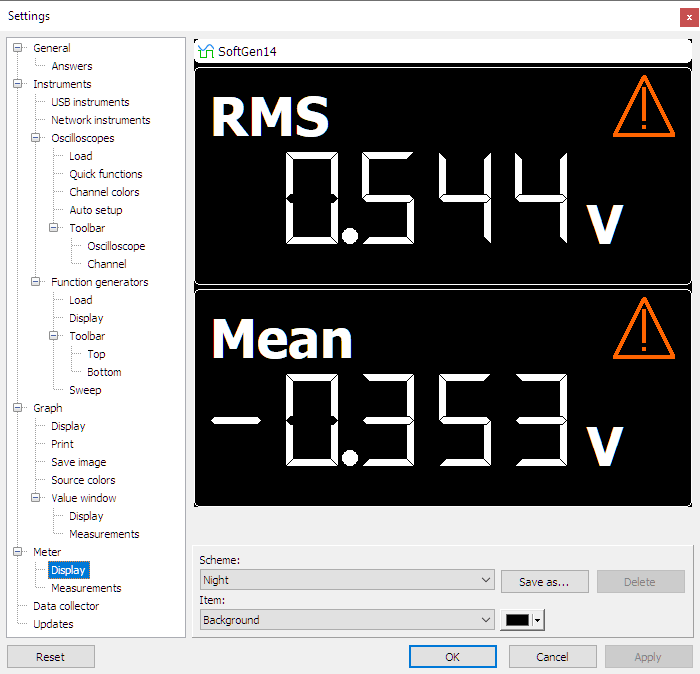
Various parts of the meter display can be customized. These settings are combined in an image scheme. Several default schemes can be selected from. It is also possible to define own schemes, which can be saved for later use.
Several meter scheme items can be adjusted. They can be divided into colors and on/off settings.
Adjustable colors
Colors may be changed by pressing a color selector button which opens a color selector dialog with several predefined colors and an option to define other colors. The following colors in a meter scheme can be adjusted:
Background
The background color is used for the background of the meter display.
Caption background
Caption background is the color that is used for the background of the source caption of the meter.
Caption outline
Caption outline is the color of the border of the source caption of the meter.
Caption
The caption color is used for the text of the source caption.
Display
When the source color is undefined, the display color is used instead.
This property sets the default display color for all meter displays. This setting can be modified per display individually through the popup menu of each meter display.
Warning color
The warning color is the color for the warning symbols that are shown when the input signal is clipped at the input range.
Adjustable on/off settings
Several meter scheme items can be turned on or off with a check box. The following on/off settings in a meter scheme can be adjusted:
Caption autosize
The property Caption autosize determines whether the text size of the source caption is fixed (off) or is resized with the meter display size (on).
Digit count automatic
The meter can display the determined values in two ways:
- with a fixed number of decimals (digit count automatic is off)
- with a dynamic number of decimals, based on the resolution of the value (digit count automatic is on)
This property sets the default value for all meter displays. This setting can be modified per display individually through the popup menu of each meter display.