Settings
To configure the Multi Channel oscilloscope software to personal preferences and requirements, many settings in various categories are available.
Color scheme
The main menu option
 allows to select a color scheme for the graphs, meters and generators.
Six color schemes are available to customize the appearance of graphs, meters and generator control windows.
Both schemes with dark backgrounds and light backgrounds are available.
allows to select a color scheme for the graphs, meters and generators.
Six color schemes are available to customize the appearance of graphs, meters and generator control windows.
Both schemes with dark backgrounds and light backgrounds are available.
A user defined color scheme can be created via the graph display settings and generator display settings.
Oscilloscope toolbar scheme
The main menu option
 allows to select an instrument toolbar scheme.
Several different instrument toolbar schemes are available that allow you to customize the instrument and channel
toolbars in a quick and convenient way.
allows to select an instrument toolbar scheme.
Several different instrument toolbar schemes are available that allow you to customize the instrument and channel
toolbars in a quick and convenient way.
- Default The default toolbar setting with only the most used controls, the instrument toolbar contains time/div controls and indicators for record length and sample frequency
- Default 2 The same toolbar content as Default, but with an alternative layout.
- Advanced The toolbar setting as used in older versions of the Multi Channel oscilloscope software, without time/div controls, but with many controls for controlling individual settings.
- Single contains the same settings as the Advanced toolbar scheme, but is optimized for use with just one instrument connected, leaving the instrument identification off the toolbar, saving space.
- Classic toolbar scheme provides the classic scope controls only: time/div and V/div, instead of sample frequency, record length and input range.
User defined toolbar settings can be created via the oscilloscope toolbar settings and channel toolbar settings.
User interface language
The user interface of the Multi Channel oscilloscope software is translated into several languages.
The main menu option
 allows to select a language to be used for the user interface.
After selecting a different language, the Multi Channel oscilloscope software needs to be restarted.
allows to select a language to be used for the user interface.
After selecting a different language, the Multi Channel oscilloscope software needs to be restarted.
Other settings
The other settings are combined in the settings dialog, which can be opened through the main menu option
 .
.
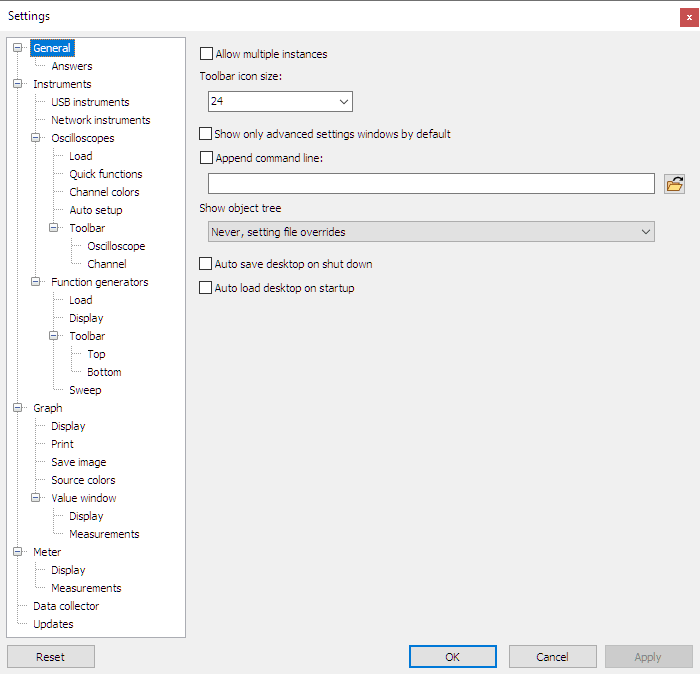
When a settings category is selected in the tree view at the left, the associated settings are shown. The four buttons at the bottom of the screen have the following function:
- Apply Apply the settings made so far and leave the settings dialog open
- Cancel Discard all changes made in the settings, including those already applied and close the settings dialog
- OK Apply all changes made in the settings and close the settings dialog
- Reset Reset all settings to factory default settings
The settings are stored in an INI configuration file, which can easily be backed up or copied to another computer.
You can also use an alternative INI file. If you create an INI file with the same name as the application executable in some folder and run the Multi Channel oscilloscope software in that folder, that file will be used instead of the default. You can easily accomplish this by changing the "start in" property of a shortcut to the Multi Channel oscilloscope software.